
Setup Your Arabic IPTV on Any Device
Choose your device and follow the step-by-step instructions to install your IPTV app, activate your subscription and start watching Arabic TV channels, movies, series, sports and VOD.
Order Your Subscription
Complete your IPTV subscription order.
Check Your Email
Receive username, password, host URL and playlist.
Choose Your Device
Follow the installation guide below.
After ordering your IPTV subscription, check your email for your login details including username, password, host URL and M3U playlist link. Also check your spam or junk folder.
Select Where You Want to Watch
Select your device below and we will take you directly to the correct setup instructions.
Samsung TV
Tizen Smart TV
LG / WebOS
LG Smart TV
Android
TV, Box, Mobile
Firestick
Fire TV & Fire HD
Apple
iPhone, iPad, Apple TV
MAG / STB
Portal Setup
Roku
Roku TV & Stick
Chromecast
Google Chromecast
Windows
PC & Laptop
MacBook
Apple Notebook
VIDAA TV
Hisense & Toshiba
Vizio TV
App / Casting Setup
Step-by-Step Setup Instructions
01 Samsung Smart TV Tizen Setup • Sky Media Player
Install Sky Media Player
Follow these steps to install and activate Sky Media Player on your Samsung Smart TV.
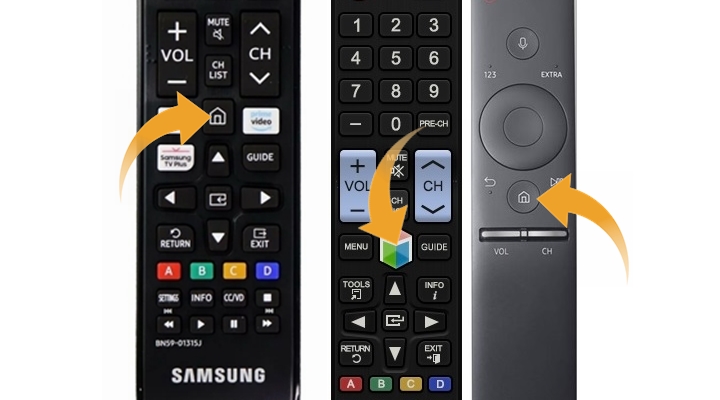
- Press the Home button on your Samsung Smart TV remote.
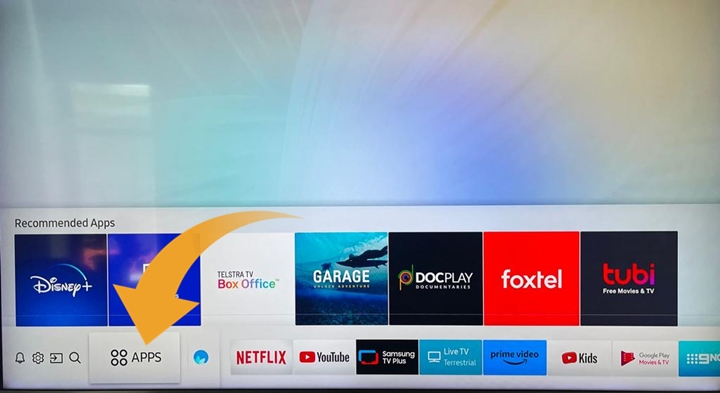
- Open Samsung Store Apps.
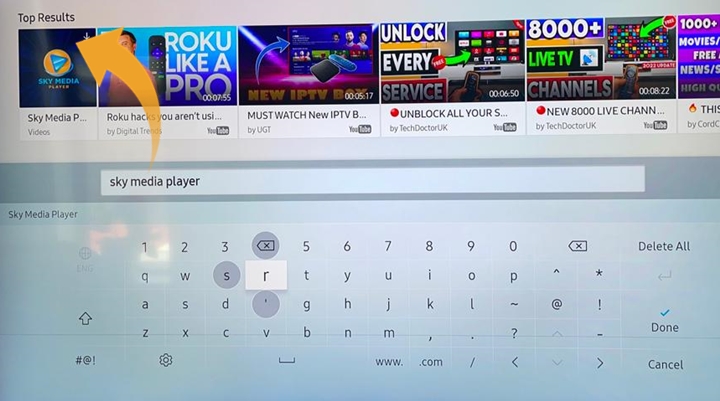
- Search for Sky Media Player.
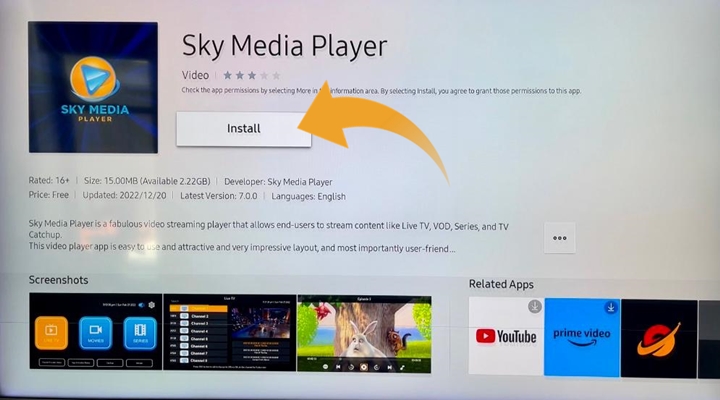
- Select the app, press Install, then open it.
- Copy the Device ID shown on your TV screen.
- Activate the Device ID from the Sky Media Player activation page.
- Upload your Playlist / M3U URL using your Device ID.
- Go back to the app on your TV and press Refresh.
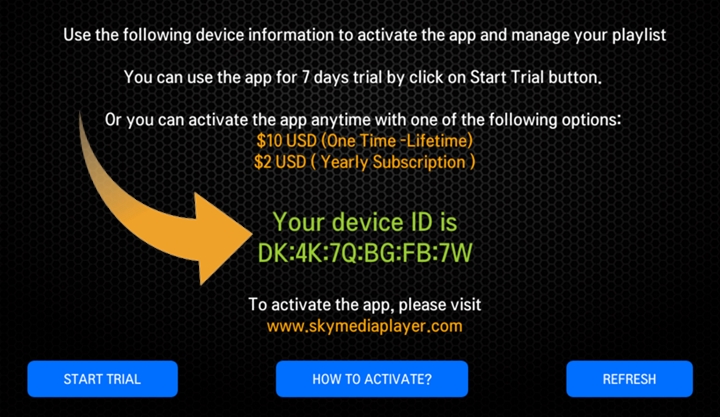
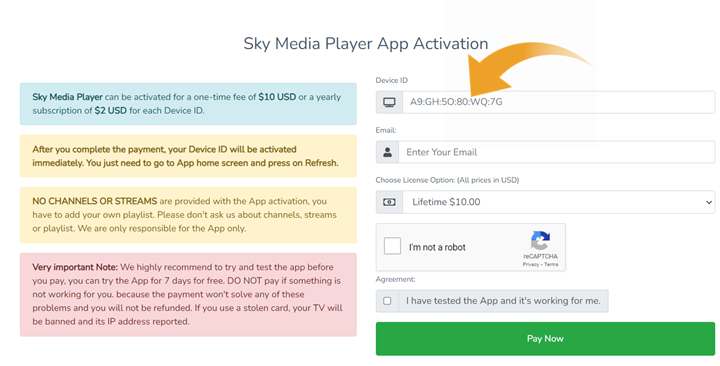
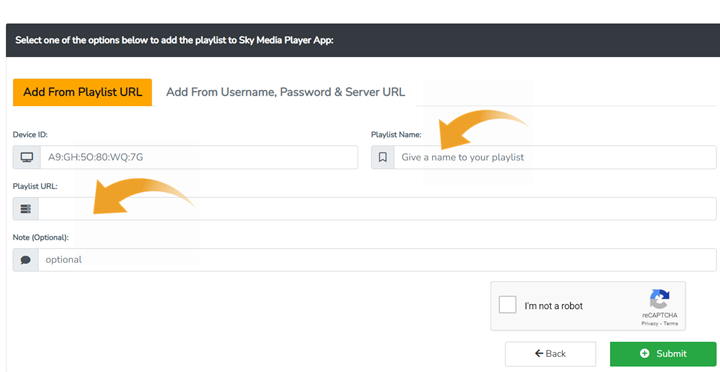
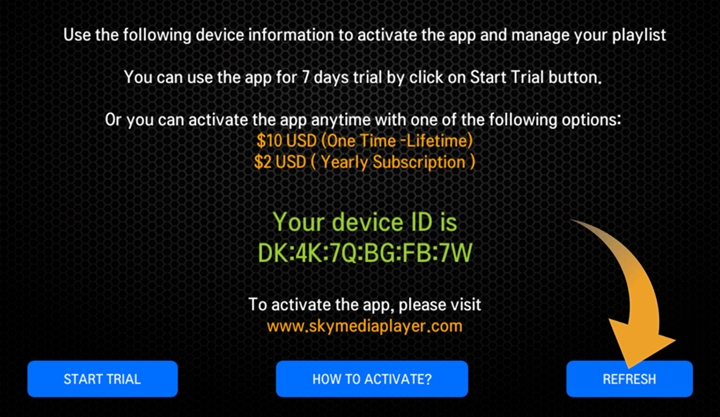
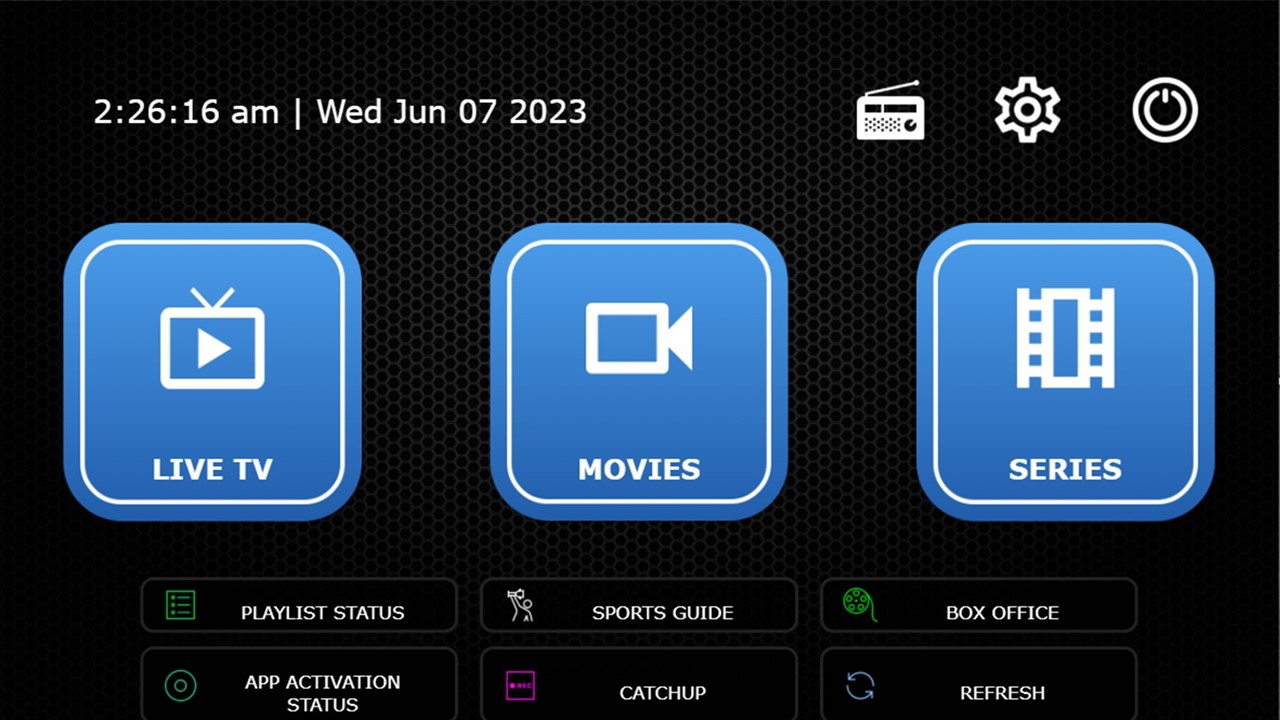
If channels open slowly, go to App Settings → General → Stream Format and select M3U8.
02 LG / WebOS Smart TV LG Content Store • Sky Media Player
Install Sky Media Player
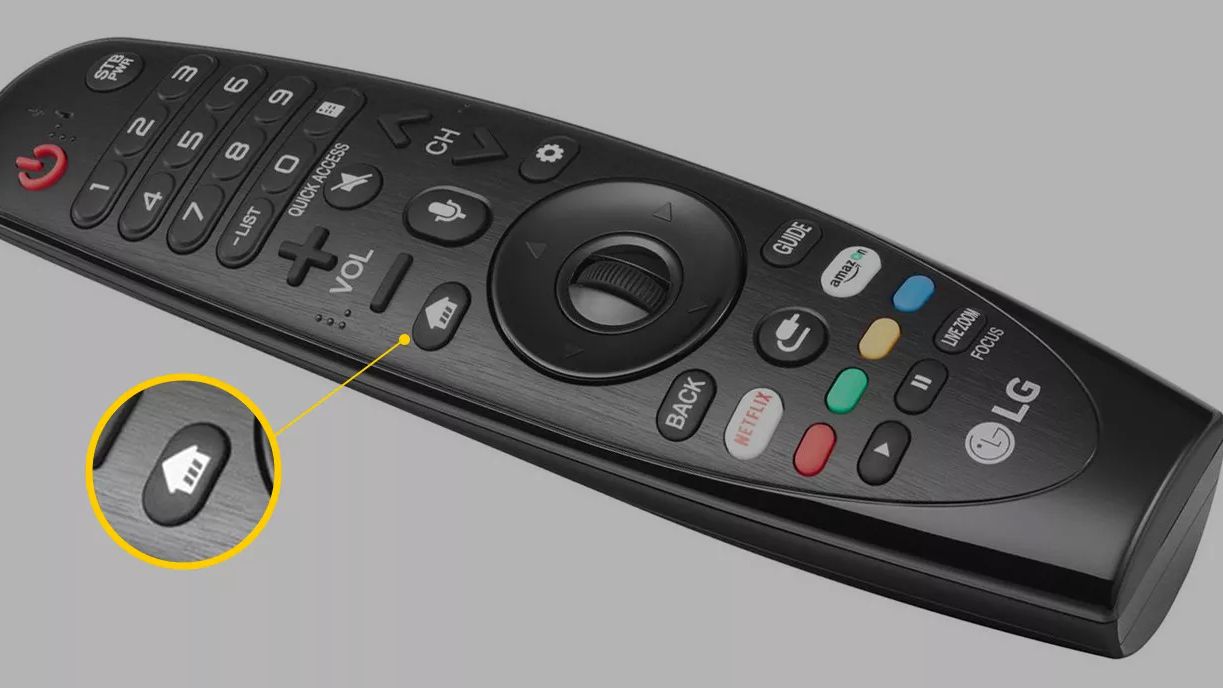
- Press the Home button on your LG Smart TV remote.
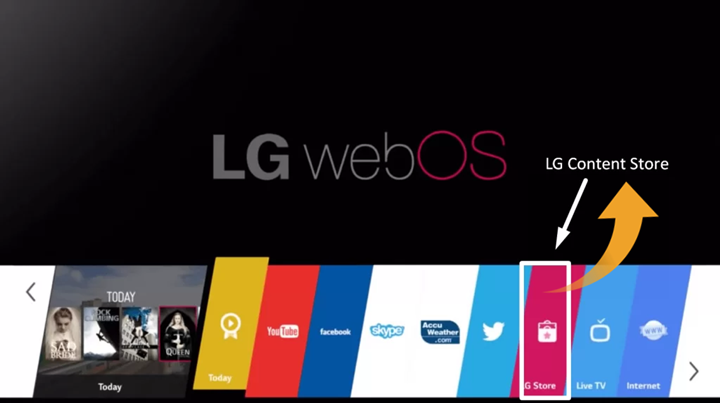
- Open LG Content Store.
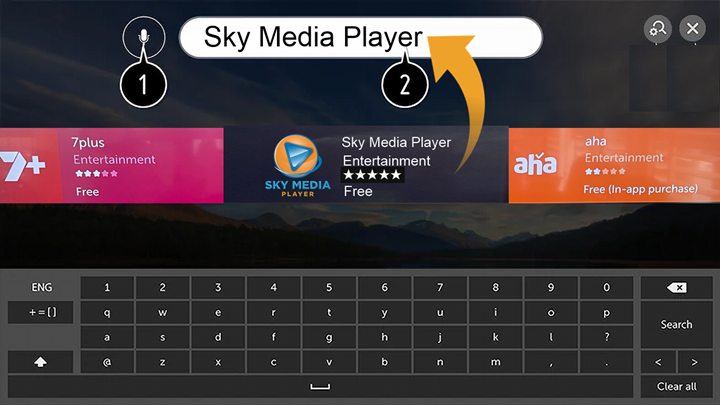
- Search for Sky Media Player.
- Select the app, install it, then open it.
- Copy the Device ID displayed on your TV screen.
- Activate the app using the Sky Media Player activation page.
- Upload your Playlist / M3U URL with your Device ID.
- Return to the app and press Refresh to load your channels.
App activation fees may be separate from your IPTV subscription, depending on the third-party app provider.
03 Android Devices Android TV • Box • Mobile • Smart TV
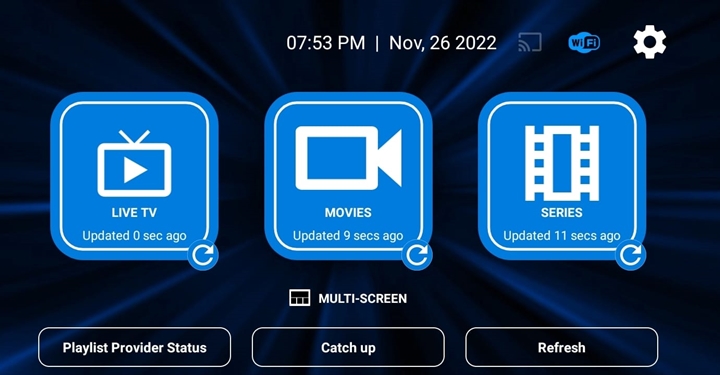
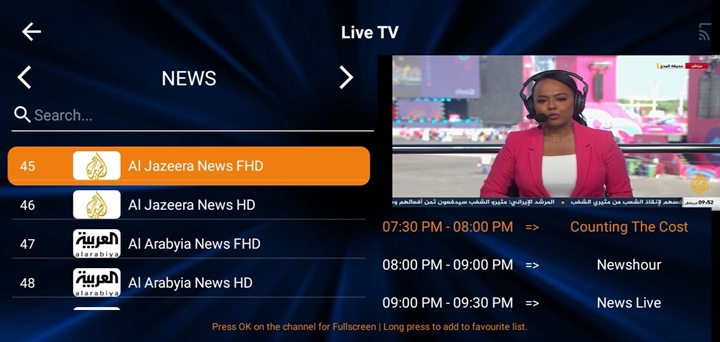
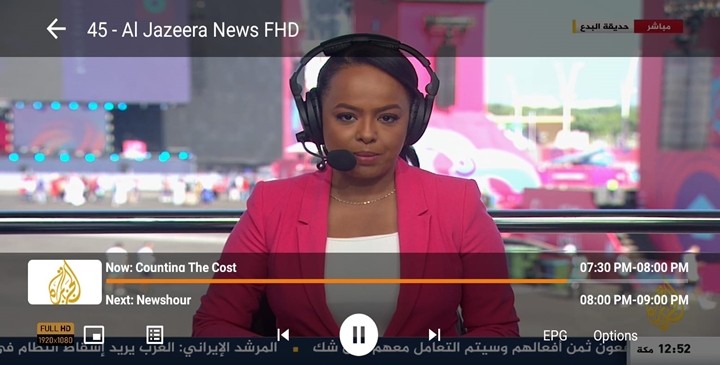
Install All IPTV Player
- Open Google Play Store on your Android TV, Android Box, phone, tablet, or Android Smart TV.
- Search for All IPTV Player.
- Install the app and open it.
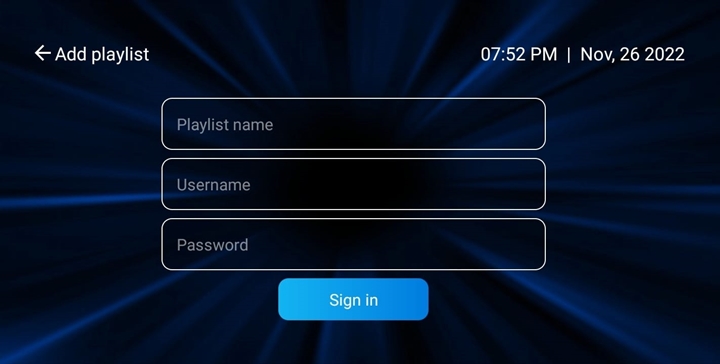
- Enter your playlist login details from your email.

Manual Installation Method
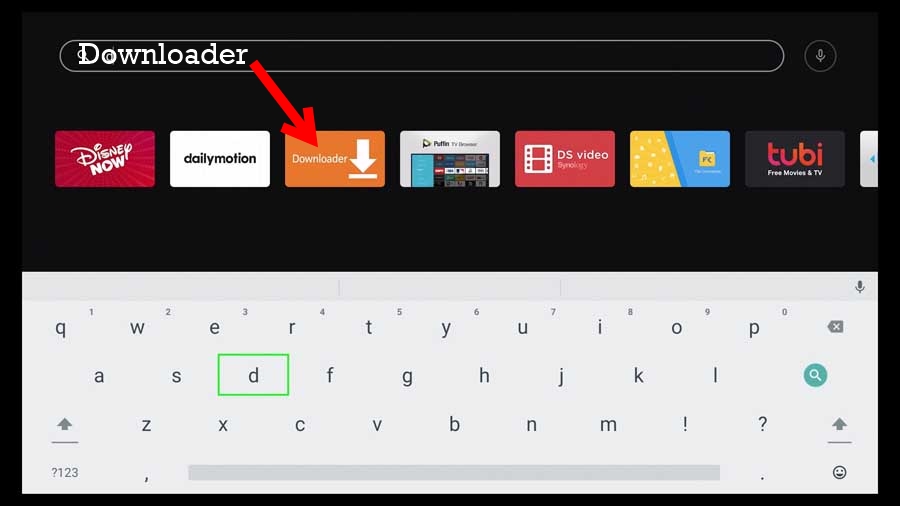
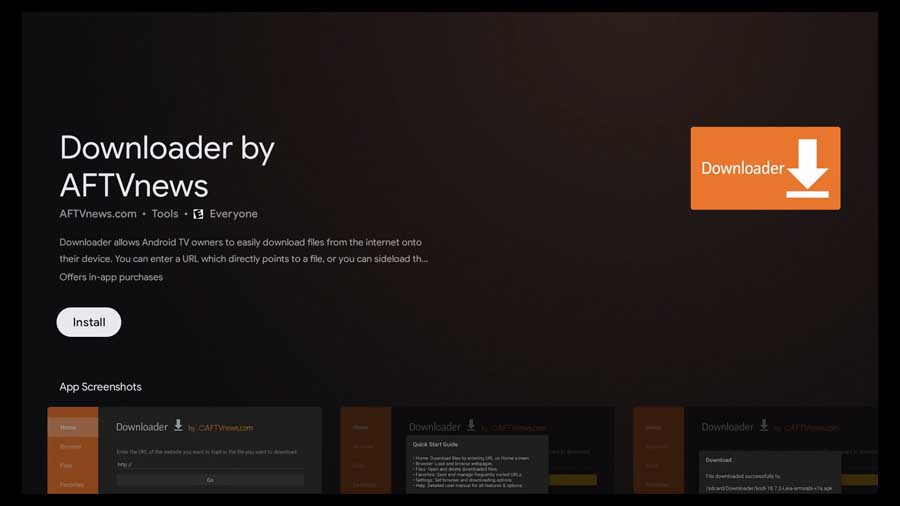
- Install the Downloader app from Google Play Store.
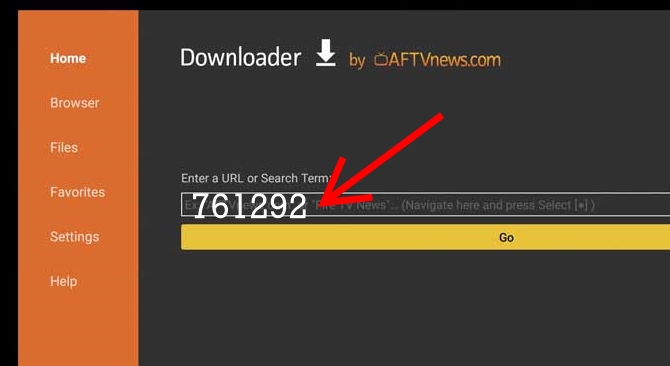
- Open Downloader and enter this code: 761292.
- Download the APK file and press Install.
- Open the app and enter your IPTV subscription details.
Login Details
04 Amazon Firestick / Fire TV Downloader Installation Guide
Install IPTV on Firestick & Fire TV
- Connect your Firestick or Fire TV device to your TV and internet.
- Go to Settings → My Fire TV → Developer Options.
- Turn on ADB Debugging and Apps from Unknown Sources.
- If Developer Options are hidden, go to About and press the first item seven times to unlock them.
- Return to the home screen and install the Downloader app.
- Open Downloader and enter this code: 761292.
- Download and install the IPTV app.
- Open the app and enter your playlist login details.

05 Apple Devices iPhone • iPad • Apple TV • macOS
Setup IPTV on Apple Devices
- Open the Apple App Store.
- Search for All IPTV Player Pro.
- Download and open the app.
- Enter your IPTV subscription login details from your email.

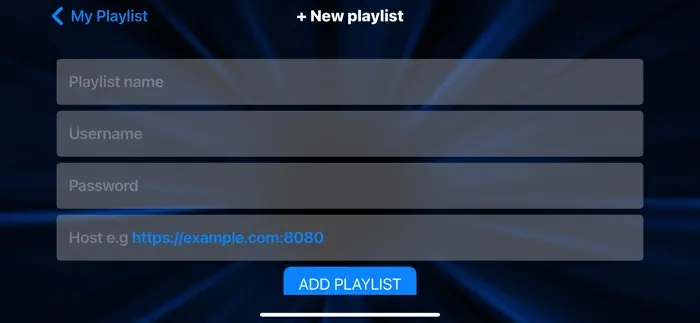
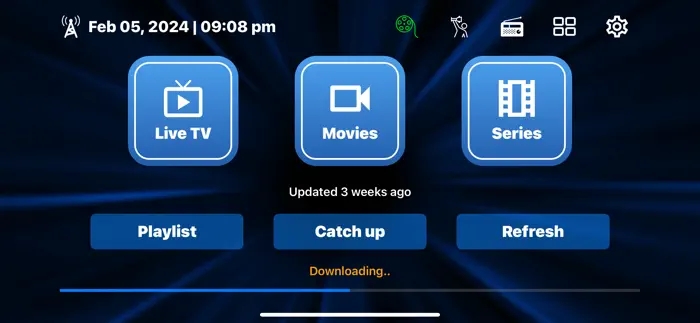
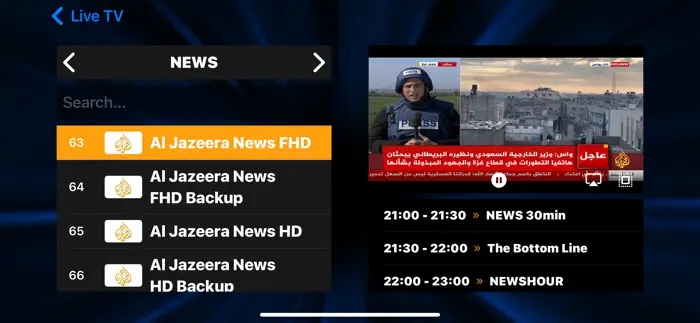
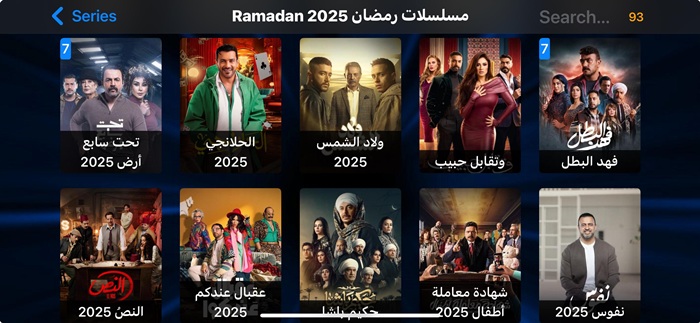
Required Details
06 MAG Device / STB Portal & MAC Address Setup
Setup IPTV on MAG or STB Devices
- When ordering, make sure you provide your MAG device MAC address during checkout.
- After completing the order, open your MAG device settings.
- Go to Settings → System Settings → Servers → Portals.
- Set Portal 1 Name. You can use any name.
- Set Portal 1 URL using the portal URL sent to your email.
- Save everything and reboot the device.
- Wait until the channel list loads on your TV screen.

MAG subscriptions usually require a dedicated MAG/STB order because the MAC address must be linked to the account.
07 Roku TV / Roku Stick Compatible IPTV Player Setup
Setup IPTV on Roku Devices
- Open the Apps section on your Roku device.
- Search for IPTV.
- Select and install a compatible IPTV Player app if available.
- Open the app and enter your subscription login details.
Roku app availability can change because many IPTV apps on Roku are third-party apps.
08 Google Chromecast Android TV & Casting Setup
Setup IPTV on Chromecast
- If you use the latest Chromecast with built-in Android TV, open Google Play Store.
- Search for All IPTV Player.
- Install the app and open it.
- Enter your playlist details from your email.
For Older Chromecast Models
Older Chromecast devices may require casting from a phone, tablet, or another supported device. Install the IPTV app on your phone and use the cast option when available.
09 Windows PC / Laptop Windows Application Setup
Install IPTV App on Windows
- Download the Windows IPTV player application.
- Install the application on your Windows PC or laptop.
- If Windows shows an unknown source warning, choose Run or Install Anyway if you trust the file.
- Open the app and enter your IPTV subscription login details.
Check your spam or junk folder for your IPTV login details.
10 MacBook / Apple Notebook macOS Application Setup
Install IPTV App on MacBook
- Download the MacBook IPTV player application.
- Install it on your MacBook or Apple notebook.
- Allow installation from security settings if macOS blocks apps from unknown sources.
- Open the app and enter your subscription login details from your email.
Alternative App
You may also use a premium compatible app such as Sky IPTV Player when available.
11 VIDAA Smart TV Hisense • Toshiba • Other VIDAA TVs
Install SmartOne IPTV
- Open VIDAA Home on your TV.
- Go to My Apps.
- Search for SmartOne IPTV.
- Install the app from VIDAA Store.
- Go to Apps Home and open SmartOne IPTV.
- Follow the app instructions to add your IPTV subscription details.
Supported VIDAA TVs
VIDAA-powered TVs may include Hisense, Toshiba, Loewe, Element, Schneider, Nordmende, AKAI, NIKAI, BRUHM, General Gold and many other VIDAA models.
12 Vizio TV Manual Installation & Casting
How to Use IPTV on Vizio TV
Vizio TVs may have limited built-in app support. IPTV setup may therefore require manual installation or casting from a supported phone.
Method 1 — Manual App Installation
- Install a downloader app if available on your Vizio setup.
- Download the IPTV player app manually.
- Install and open the app.
- Enter your IPTV subscription details.
Method 2 — Cast from Phone
- Install a compatible IPTV app on your phone.
- For Apple phones, use a compatible app such as Sky IPTV Player.
- For Android phones, use a compatible app such as All IPTV Player.
- Use the TV Cast option to cast content to your Vizio TV.
Having Trouble Setting Up Your IPTV App?
Our Arabic and English support team can help with app installation, device activation, playlist setup and choosing the right app for your device.